
What this page helps with
Common problem
A 24/7 video workflow can fail when installation, license, playlist, codec, audio and diagnostics are handled in separate places.
StreamerPro solution
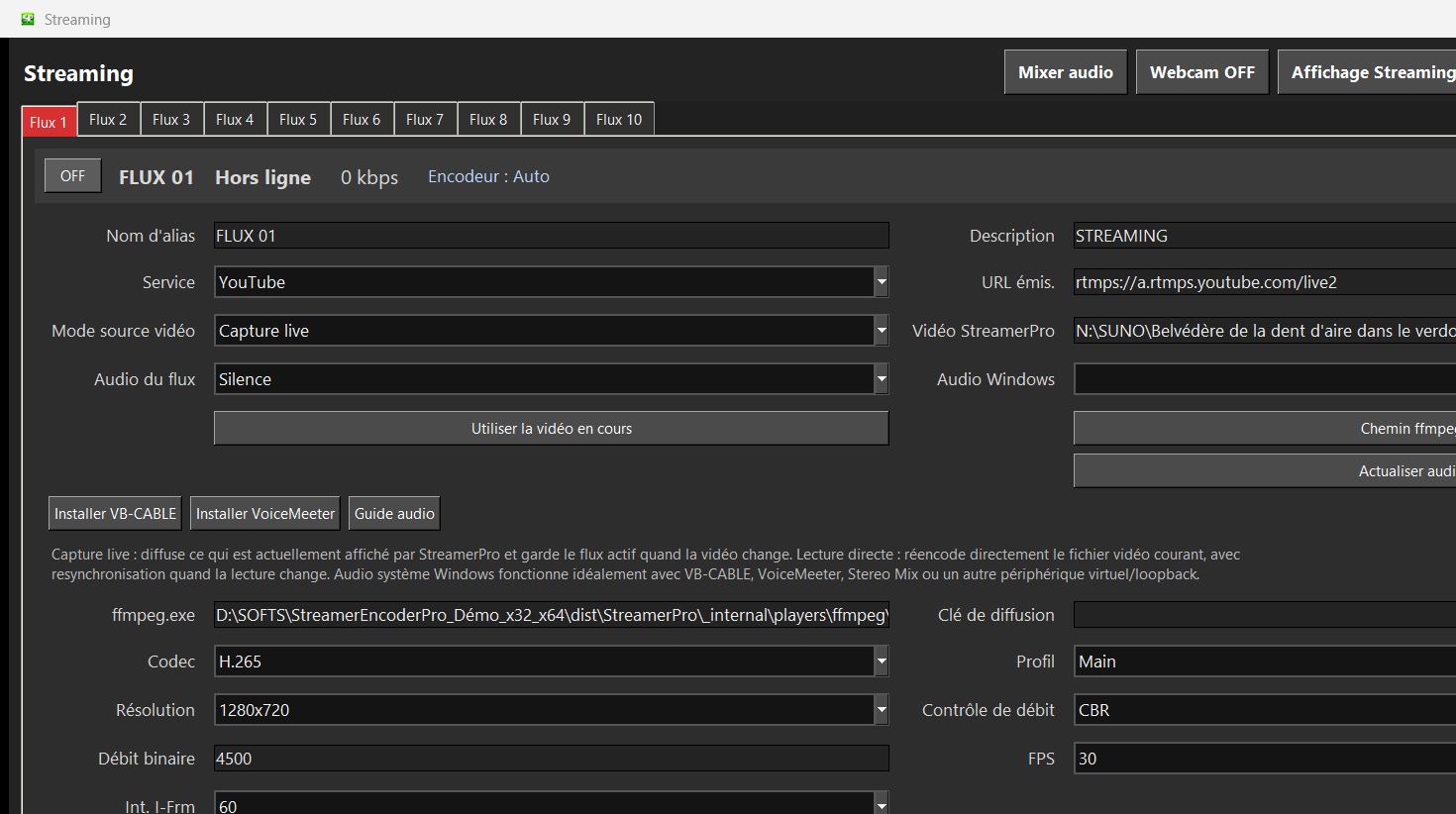
The documentation brings the main StreamerPro setup steps together so users can configure, test and troubleshoot a local Windows station.
Concrete use case
A user follows the guide to install StreamerPro, prepare a playlist, check FFmpeg settings and export diagnostics if the stream fails.
Quick questions
Where should I start?
Install the demo, test local playback and then configure streaming.
Does it cover FFmpeg?
Yes, the documentation links to practical FFmpeg and YouTube Live settings.
How do I get support?
Use the forum, contact form or diagnostic export.
Getting started
Main workflows
Troubleshooting priorities
Related English pages
FAQ
Where should I start?
Download the demo, test local playback, then test RTMP streaming with a short YouTube Live session.
Can I reinstall StreamerPro?
Yes. Keep your license email and contact support if you need activation help.
Is there a support forum?
A StreamerPro support forum is available from the main site navigation.
StreamerPro Video Converter
StreamerPro Video Converter
Prepare videos before streaming with the built-in FFmpeg converter: H.265 to H.264, 4K UHD, CBR, AAC audio, progress tracking and FFmpeg log.